
Changelog

What's new in Demoloop

Every improvement we ship to the agent that demos your product, newest first.

Opening reel

New

You can now give your agent an opening reel: a few short lines it says while it drives your product, right as the product opens on a first visit. The visitor watches their screen being used live and sees that they can steer it.

Each step is one line and one move: a page to open, something to do there (open a record, type into a search), or both. You can have up to eight steps. The agent says the lines in the visitor's language, and when the reel ends the screen goes back to where the product opened.

The reel plays when a first-time visitor says yes to seeing the product. If they ask to see something specific, say they're short on time, or raise something the agent should answer first, it skips the reel and gets to that.

It's on an agent's Script tab, under First ten seconds. A switch turns it off and keeps the steps. The Copilot, Claude or any other MCP client can edit it too, and like every edit it goes to your draft until you publish.
Jump the recording to any line

New

A small one, but it saves a lot of scrubbing. On a session's page, hover any line in the transcript and a play button shows up with the time it was said. Click it and the recording jumps there and plays, starting a second early so you catch the first words.

On a phone or tablet the button is always shown, since there's nothing to hover.

Demos translated into your team's language

New

When a demo is held in a language other than your team's, we now translate it once it ends. The session page opens with the transcript and the recap in your team's language, and Show original switches back to the words that were actually said. Through the MCP, Claude and other AI tools get both.

You set the team language in Settings, under General. It's English or Spanish for now, and it's the same setting that picks the language of lead briefs and hand-off messages. Changing it doesn't re-translate demos that already ended.

Simulations

New

Simulations let you try a change to your agent before a real visitor hears it. A simulated visitor talks to your agent over text, on your real product, and every demo gets graded.

By default a simulation runs your draft, so visitors keep getting the published version while you test. You can also pick two versions, say your draft and what's live now, and run both against the same visitors.

Each demo is graded against seven built-in checks, like not repeating itself and following the visitor, plus any yes/no checks you write. A failed check shows the lines that failed it. The results show each check's pass rate per version and how much it moved, and score how likely the visitor was to take a next step, from 1 to 5.

There are five built-in visitors, from a busy founder to a technical buyer, and you can write your own.

A few other things:

  • Simulations are billed like test demos: your free test hours first, then half the live demo rate.
  • Simulated demos never reach a lead or an automation, and they don't show up in Sessions, People or your stats.
  • Claude or any other MCP client can start a simulation, compare two versions, read the results, and manage your checks and visitors.

It's under Simulations in the sidebar.

Drafts and publishing

New

Edits to a live agent now go to a draft, and visitors keep getting the published version until you press Publish. That goes for every edit, whether it comes from the dashboard, the Copilot, or your own AI tools.

  • When there are unpublished changes, Try live demo asks whether to run the draft or the published version.
  • Publish lists what visitors will see change, section by section, before anything goes out.
  • Version history marks which version is your draft and which one visitors get. Publish an older version to roll back, or restore it into your draft and keep editing.

The copilot now covers your whole workspace

New

The copilot used to live on an agent's page and only knew about that agent. It has its own page now, and it can read your agents, websites, sessions and transcripts, leads, automations and emails. Ask it how your last demos went, who your best leads are, or what a visitor said in a particular session.

It can also make changes. Name an agent and ask for a sharper pitch, a new FAQ or a fixed page, and it edits it. Every change goes into that agent's version history.

It won't create agents or websites, write automations or emails, or send anything. For those it points you to the right page in the dashboard.

Copilot is now first in the sidebar, and it's where you land when you sign in. On an agent's page it no longer opens by itself. Click Edit with AI when you want it.

Demos start faster

Improved

Most of the wait between pressing Start and hearing the agent is gone. We now start preparing the demo as soon as the visitor reaches the microphone check: the browser opens, your product loads and the intro screen is drawn. Pressing Start picks up from there.

Company research starts earlier too, when the visitor enters their email rather than when the demo starts, so it no longer holds up the first words. The intro screen is kept between demos and only rebuilt when you change the agent.

The connecting screen now says it takes less than 15 seconds. If the visitor is waiting behind other demos, it shows no estimate instead of a wrong one.

A rebuilt demo opening

Improved

We listened to a lot of real sessions and rebuilt how the agent opens and runs a demo.

The opening is shorter. The agent says what your product does, in your words, and asks whether the visitor wants to hear a bit more or go straight in. If they say "let's get to the point", they get a quick acknowledgement and the product, not the same question again.

Qualification questions aren't a checklist anymore. The agent asks them where they fit in the tour, and the answers are read from the whole conversation after the demo ends.

Also:

  • If a visitor mentions who they are or what they need, the agent switches to the demo flow that fits, without asking them to pick one.
  • It still uses what it learned about the visitor's company, but it doesn't tell them it looked them up.
  • Sample data on screen is presented as an example, not as the visitor's own setup.

Background room tone

New

Demos now play a quiet office room tone under the agent. When the agent pauses to think, the visitor hears a room instead of dead silence, which sounds a lot less like the call froze.

The tone drops lower while the agent talks, so it doesn't pop in and out between sentences. When the agent asks a question and waits for an answer, it fades out completely.

It's on by default. You can turn it off per agent under Sound in the agent's settings.

Telegram hand-offs

New

Automations can now post to Telegram, alongside email and webhooks.

Add a Telegram destination, pick your own chat or a group, and follow the steps in Telegram. The page notices when it's connected, so there are no IDs or tokens to copy. Then add a Telegram step to a flow and choose which chat it posts to, or all your active chats.

Each step sends one of three messages: an alert with a note you write, a hand-off request with the reason and the session recap, or the lead's full hand-off details. You can send a test message from the destination to see what it looks like, and a step that posted shows as "Posted to Telegram" on the run timeline.

Email signatures

New

Senders can now have a signature, which goes under the body of every email they send. The page is now called Senders and signatures.

A signature has fields for full name, job title, company, phone, and up to four links, for example LinkedIn or a booking page. You can also add your company logo (the one in your branding settings) and the reply address, which is read from the inbox replies go to so the two always match. A preview next to the form shows a sample email as you type.

The signature applies to your own templates and to the built-in emails: the demo wrap-up and both follow-ups. A send step with no sender selected sends the same thing it did before. Turning the signature off keeps what you typed.

Formatting in email templates

Improved

Email templates used to be plain text. The editor now does headings, bold, italic, underline, strikethrough, bulleted and numbered lists, quotes, code, dividers and links, styled to look the same in the inbox as in the editor.

Variables work as before: click one in the sidebar to insert it at the cursor. Existing templates were converted for you with their paragraph breaks intact, and generated translations keep the formatting.

Images aren't supported. Templates stay text, which keeps them light in any inbox.

Eleven more demo languages

New

Demos now run in Portuguese, Italian, Dutch, Polish, Japanese, Korean, Chinese, Arabic, Turkish, Russian and Swedish, on top of English, Spanish, French, German, Hindi and Ukrainian. Each language has its own native voice. Pick it from the same dropdown when you start a demo.

The copilot is now a side panel

Improved

The copilot used to open on top of the page it was editing, and pressing Escape or clicking outside it closed the panel and lost the conversation. It now docks next to your agent's tabs or the automation canvas, so you can watch edits land while it replies.

It only closes from its close button. It stays open when you switch tabs, reload, or come back through a link, and it remembers the width you drag it to, on every agent and every flow. In narrow windows it covers the page instead of squeezing it.

Intro screen styles

New

You can now choose how a demo's intro screen looks. There are three generated styles (dark, light and teal) built around your agent and headline, and the preview redraws as soon as you switch, before you save. Or upload your own hero image and it's shown exactly as uploaded.

Your headline and welcome message are kept while a custom image is in use, so they're still there if you switch back. The preview is the same image visitors and recordings get.

Support sessions no longer act like sales demos

Improved

Support sessions launched on top of the sales flow, so they called the customer a lead and summed up the call as if you were trying to close them. We've fixed that.

  • Once the agent works out what the customer came for, that goal shows on the session card.
  • Before wrapping up, the agent checks the problem is actually solved. Every session is recorded as resolved, unresolved or escalated to a person.
  • The recap says what the customer wanted and whether they got it, instead of scoring them as a prospect. Hand-off alerts to your team read the same way.
  • Session pages, notifications and the viewer no longer call the customer a lead.
  • Pass a customer's email and language in the link and they go straight in, in their language. People who'd rather type can open straight into chat.

Fewer blocked sites, shorter pauses

Improved
  • Some products treat automated browsing as suspicious and were showing the agent a block page instead of the app. The agent's browser now behaves like an ordinary one, so those demos run.
  • The agent starts preparing its next reply while it's still speaking, so the pause after a visitor stops talking is shorter.
  • If a page stops responding, the agent reloads it and keeps going.
  • Finished demos close right away instead of lingering on screen.

Automations

New

The emails we send after a demo used to be a few on/off switches, with rules you couldn't see. The wrap-up only went out if the visitor had really engaged with the agent, and the team alert was skipped when you had a booking link. Neither was written down anywhere in the dashboard.

Those emails are now Automations: flows already set up in your workspace, sending exactly what they sent before until you change them. Open one and the rules are on the canvas. Conditions for who enters sit on the trigger, conditions for which path to take sit on the split, and you can edit all of them.

The steps are wait, send an email, tag the lead, set their temperature, split, call a webhook, alert your team, and stop.

A split can check whether the lead is hot, warm or cold, whether the demo qualified them, whether they asked for a human, how much they talked to the agent, which agent ran the demo, the demo's language, the rating they left, whether it was their first demo, and their tags. A path can test one condition, or several joined with AND or with OR.

Each flow shows which leads are in it, which step they're on, and everything that happened to each one, down to which email went out and when. A lead's page lists every flow they've been through, and tags a flow sets can be used to filter your demos list.

There's also a new, longer nurture sequence. It ships turned off so you can look at it first.

Webhooks and team alerts as flow steps

New

Webhooks and team alerts are now steps in a flow, so they only fire for the leads that reach that point. Push to your CRM only for qualified leads, say, or alert your team only when someone asked for a human and you have no booking link.

A webhook step sends to one named destination or to every enabled one, so a destination you add later is picked up without editing the flow. A team alert emails your workspace, or a specific inbox you've set up, with context from the demo.

If a flow is retried, a step that already fired doesn't fire again.

Branch on email opens, clicks and bounces

New

Flows can now branch on what happened to an email: delivered, opened, clicked, bounced or marked as spam. For example, send an email, wait two days, then go one way if they clicked and another if they didn't. The condition always looks at the last email that flow sent.

If an address hard bounces or someone marks a message as spam, that lead leaves every running flow straight away.

A caveat on opens: many mail clients block open tracking, so "not opened" isn't proof of anything. It's fine for deciding to send a nudge, less so for writing a lead off.

Email templates

New

There's now a template library in the dashboard where you write your own follow-up emails, subject and body, with variables filled in from the demo.

  • Each variable can have a fallback, so a missing first name uses the wording you picked instead of stopping the send.
  • Write the email once and it's translated into the other languages your demos run in. Read, edit or rewrite each version, and flows send the one that matches the demo's language. When you change the original, the translations are flagged as out of date.
  • Each template shows how many automations send it, with links to those flows.
  • Senders now have a display name and a real reply address. Before this, a prospect who hit reply was writing to nobody.
  • You can send yourself a test with real values filled in.

The copilot can build automations

New

The copilot that edits your agent now works on automations too. Describe what you want, like "wait two days, then email anyone who didn't book a time and tag them for the sales team", and it lays out the steps and writes the emails. Each edit shows up on the canvas while it replies, so you can correct it in the same chat.

A new automation now starts empty, with a Create with AI shortcut, instead of a default flow you'd have to take apart first.

Automations, email templates and senders are also available through our MCP server, so you can do the same from the AI assistant you already use.

The copilot can read your demos

Improved

The agent copilot can now read your past demo sessions and their full transcripts. Ask it what visitors keep asking about, and it can turn the answer into a new FAQ, a sharper pitch or a clearer feature description. It only sees demos for the agent you have open.

The same transcripts are available through our MCP server, for your own AI assistant.

Agent copilot

New

Every agent now has a copilot chat in the dashboard. Tell it what to change, like "make my pitch punchier" or "add an FAQ about pricing", and it edits your pitch, welcome screen, pages, demo flows, FAQs, qualification questions or materials. There's nothing to set up.

You see each change as it's made, and the agent's tabs update behind the chat. Every edit goes into version history, so you can roll back. Chats are saved to your account and private to you, so you can reopen an old one and carry on. After you create your first agent, onboarding points you to the copilot.

Customer support

New

The agent can now do support as well as demos. Point it at your existing customers and it works as a live helpdesk: they ask out loud, it answers, then shows them where to go in your product. Answers come from your own materials and your live app.

There's no queue and no business hours, it speaks your customer's language, and it sends people to your team when it can't sort something out. Put the link wherever customers look for help: your help center, onboarding emails, or the Help menu in your product.

Demos keep going when the AI provider is down

Improved

If the AI provider behind the agent has an outage or slows down, the demo now switches to a backup provider for that reply and carries on instead of going quiet. There's nothing to configure. It only switches for real provider problems, not when a visitor talks over the agent or ends the demo early.

Chat with the agent after a demo

New

When a demo ends, visitors now get a "Do you have more questions?" card and can keep asking the same agent in writing: pricing, features, next steps, anything. You can also put a chat link in the wrap-up email (it's a workspace setting) so they can come back later. Every follow-up chat is saved on the demo for your team to read.

Hand-offs to your team

New

The agent can now tell when a visitor wants a real person, because they ask or because they're clearly ready to buy, and hand them to your team.

With a scheduling link set, the visitor gets a "Talk to a human" card during the demo and a booking prompt in the wrap-up email. Without one, everyone on your team gets an email with the visitor's details and why they asked, and replying goes straight to the visitor. Turn it on per agent in its settings.

Demos tailored to the visitor's company

New

When a visitor starts a demo with a work email, the agent now looks up their company first and adjusts the demo to their industry, size and what they do. If the visitor asks how it knows, it tells them it looked the company up from their email. Personal email addresses get the standard demo, with no lookup.

Log the agent in with a demo account

New

Demoing a product behind a login used to mean copying a session out of your own browser. Now you can give the agent a username and password instead. Point it at your login page and it signs in when the demo starts, then reuses that session until it expires.

Cookies still work, on their own or alongside a login, if you want to paste a session or seed something like a cookie banner. You can test a login from the website settings and get a screenshot of where the agent ended up. If a saved login stops working, we flag it so you can fix it before the next demo.

Use a dedicated demo account. Two-factor auth, SSO and CAPTCHA won't work.

Stored logins are encrypted

Improved

Cookies, browser sessions and login passwords you store for demos are now encrypted at rest. Cookies and sessions go straight to the demo browser and the AI model never sees them. There's a note next to the fields saying exactly how they're handled.

Captions in live demos

New

Visitors can turn on captions during a live demo. They're off by default and one click away in the player. Words appear one at a time, in sync with the voice, in whatever language the demo is running in.

Dashboard fixes, and a mobile nav bar

Improved
  • The dashboard has a bottom navigation bar on mobile.
  • The demo detail header stays visible while you scroll.
  • Fixed the scroll flicker on the demos and leads pages.

Lead scoring

New

Every lead now gets scored hot, warm, cold or disqualified based on how the demo actually went. Each lead also has a profile built from what they said, which you can edit, and a page with their demos, email history and an activity timeline.

The agent points at what it's talking about

Improved
  • The agent now circles and highlights what it's describing on screen, a few elements in a row if it needs to.
  • It finishes multi-step actions like search, submit and show the result, instead of stopping halfway through typing.
  • Moving between pages no longer flashes white.

Command palette

New

Press Cmd+K to jump to any page, search leads and IDs, or get back to a recent search.

Demos list updates

Improved
  • Hover a demo to play a preview, with play, pause, speed and seek.
  • Duration shows as a bar, ratings as stars, and locale flags have tooltips.
  • Demos running right now show up in the sidebar.

Demos in Spanish and French

New

Demos now run in Spanish and French as well as English, voice included.

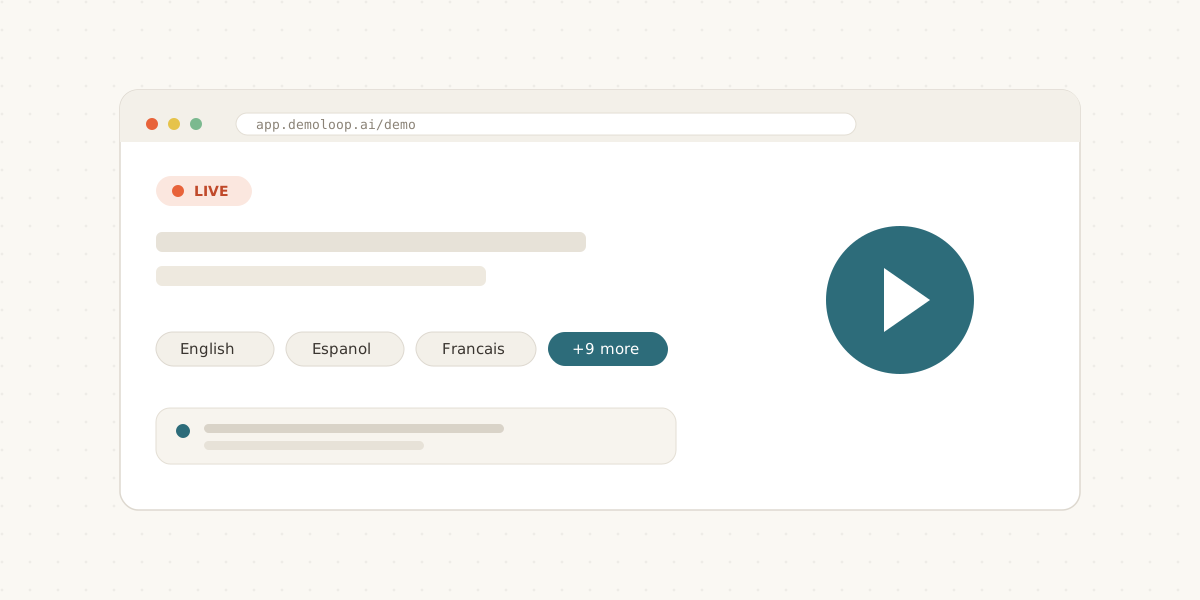
A live Demoloop walkthrough running inside a browser window

Visitors pick the language on the start screen, and the agent talks, answers questions and qualifies them in that language. The wrap-up email goes out in the same language.

Type instead of talking

New

Visitors who can't use a mic can now type to the agent during a live demo, and it answers in the same conversation. Closing the tab now also ends the demo right away.

Guided onboarding

New

New workspaces get a checklist for setting up the first agent: add your website, build the agent, test it, go live. It follows you around the dashboard until you're done.

When you're ready to launch, the deploy page gives you a share link, a downloadable share image, and embed snippets for React, an iframe or a plain link.

Try it on your own site

New

Anyone can now enter their website URL and watch an agent demo their own product within seconds, without booking a call.

The MCP server is open to everyone

Improved

Anyone can now use our MCP server, with the full set of agent tools. From your own AI assistant you can create agents and websites, edit demo flows, FAQs and materials, read leads, and switch workspaces from one connection.

Every change shows up in an activity log, and every edit is versioned, so you can review the history and roll back from the dashboard.

Open signups and magic links

New

Anyone can sign up now, no invite needed, and you can sign in with a link from your inbox instead of a password. New accounts start on a welcome screen that explains what to do first.

Most shown features

New

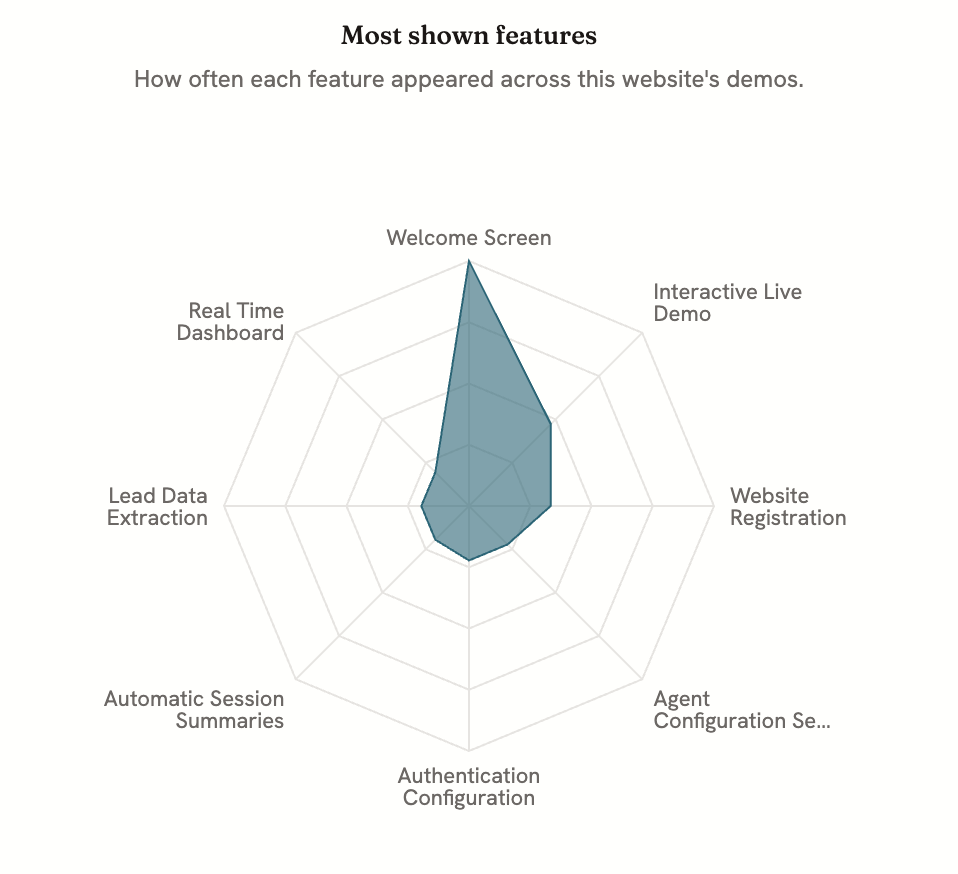
Each website now has a Features tab showing which product features your demos put on screen, ranked by how often.

A radar chart titled "Most shown features" plotting how often each feature appeared across a website's demos

The radar chart shows your top features together, and the full list with counts sits below it, each one linking to its feature. The websites table also shows each site's most shown features, so you can compare them.

Shareable demo recaps

New

Every demo now has a private recap link, and it's included in every wrap-up email. Anyone you send it to can see what was shown without an account, and the link can't be guessed. Until now only our own demos had one.

Feature focus, support mode and voice tone

New
  • Feature focus sends a prospect straight to one capability, with its own share link.
  • Support mode runs the agent as a helpdesk that answers questions instead of giving a pitch.
  • Voice tone sets how the agent sounds.

Lead alerts by email or webhook

New

New-lead alerts can now go to any email address you choose, or into your own systems through signed webhooks. We also lowered the alert threshold, so you hear about a promising lead sooner.

Demos remember returning visitors

New

When a visitor comes back for another demo, the agent welcomes them back and remembers what they told it last time. It skips questions it already knows the answer to, at most double-checking something that might have changed, and uses the time to go deeper or get into the product sooner.

If asked, it says it has notes from their last demo, and whatever they say this time wins over those notes. Notes your team writes on a lead in the dashboard are never read out. The agent only brings up what the visitor told it.

Shorter pauses between turns

Improved

We cut the time between a visitor finishing a sentence and the agent starting to reply. Longer actions, like loading a page or running a search, now carry on in the background while the agent keeps talking, so the conversation doesn't wait for the screen.

MCP server, and two email fixes

NewFixed

You can now connect Demoloop to your own tools through our MCP server, so an assistant can create agents, edit demo flows and read leads for you.

Fixes:

  1. Wrap-up emails sometimes left out materials the agent mentioned during the demo. They're always attached now.
  2. The recap link sometimes pointed to the wrong demo.